


Losing data on your iPhone can feel sudden.
One minute everything is there. The next, photos are gone, apps reset, messages missing. Maybe you upgraded to a new device. Maybe you had to erase your phone. Maybe something crashed after an update.
If you’re searching how to restore backup on iPhone, here’s the simple truth:
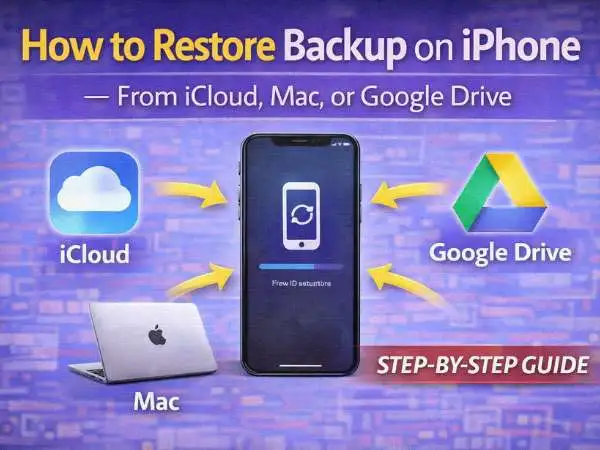
You can restore your iPhone from an iCloud backup, from a Mac or PC backup, or in limited cases from Google Drive — depending on how your data was originally saved.
But the method depends heavily on where your backup exists and whether your phone has already been set up.
Let’s walk through it clearly.
also read : – ARP Address Resolution Protocol (ARP): A Complete, In-Depth Guide
Why Do I Need to Back Up My iPhone?
Before we get into restoration steps, it helps to understand why backups matter.
An iPhone stores:
- Photos and videos
- Messages
- Contacts
- App data
- Notes
- Health information
- Device settings
If your phone is lost, damaged, reset, or replaced, that data doesn’t automatically come back unless it’s backed up somewhere.
Backing up creates a snapshot of your device at a specific time.
Restoring pulls that snapshot back onto your phone.
Without a backup, recovery becomes much harder.
And that brings us to one of the most common follow-up questions.
How Do You Recover Deleted iPhone Photos?
If you deleted photos accidentally, the first step isn’t restoring a full backup.
Open the Photos app and go to Albums → Recently Deleted.
Photos stay there for 30 days before permanent removal.
If they’re not there, your recovery options depend on backups.
Option 1: Restore from iCloud Backup
If your iPhone was backed up before the photos were deleted, restoring that backup may bring them back.
But this replaces your current data with the older snapshot.
That means anything added after that backup will be lost.
You must decide whether recovering those photos is worth replacing newer data.
Option 2: iCloud Photos Enabled
If you use iCloud Photos, deleted images sync across devices.
In that case, restoring a full backup may not help.
Instead, check iCloud.com → Photos → Recently Deleted.
If the photos weren’t backed up at all, recovery becomes unlikely.
That’s why regular backups matter.
also read : – Smart Digital Protection: Securing Your Devices While Saving on Software Costs
How to Restore Backup on iPhone From iCloud
iCloud restoration is the most common method.
But here’s the key: you can only restore from iCloud during the setup process.
If your phone is already set up, you must erase it first.
Step 1: Erase Your iPhone (If Already Set Up)
Go to:
Settings → General → Transfer or Reset iPhone → Erase All Content and Settings.
Confirm.
The phone will reset to factory state.
Step 2: Start Setup Process
After restart, follow the setup screens until you reach Apps & Data.
Choose Restore from iCloud Backup.
Step 3: Sign In
Enter your Apple ID.
Select the most relevant backup based on date and size.
Restoration begins.
This can take minutes to hours depending on internet speed and backup size.
Apps may continue downloading in the background after initial setup completes.
How to Restore Backup on iPhone After Setup
If your phone is already configured and running normally, you cannot restore a backup without erasing it first.
There’s no “merge” function.
Apple’s system replaces the entire device data with the selected backup.
So if you need to restore after setup:
- Back up current data first (if needed).
- Erase the device.
- Go through setup again.
- Choose Restore from iCloud or Mac backup.
It feels inconvenient, but it’s by design to avoid data conflicts.
also read : – Notebook vs Chromebook vs Laptop: What’s the Real Difference?
How to Restore Backup on iPhone From Mac
If you backed up your iPhone using a Mac (Finder) or older iTunes system, you can restore locally.
This method is often faster than iCloud.
Step 1: Connect iPhone to Mac
Use a Lightning cable.
Open Finder (on macOS Catalina or later).
Select your iPhone from the sidebar.
Step 2: Choose Restore Backup
Click Restore Backup.
Select the desired backup from the dropdown list.
Click Restore.
If encrypted backup was used, enter the password.
Restoration begins immediately.
This replaces all current data.
Local backups often restore faster because they don’t rely on internet download.
How to Restore Backup on iPhone From Google Drive
This is where things get different.
iPhone cannot fully restore system backups from Google Drive the way Android devices can.
However, you can restore certain data types.
For example:
- Contacts (via Google account sync)
- Photos (if uploaded to Google Photos)
- Files stored in Google Drive
Restore Contacts
Go to:
Settings → Mail → Accounts → Add Account → Google.
Sign in.
Enable Contacts.
Your Google contacts sync back to your iPhone.
Restore Photos
Install Google Photos app.
Sign in.
If your photos were backed up there, they appear.
You can download them back to your device.
But Google Drive does not support full iPhone system restoration.
If you switched from Android to iPhone, Google Drive helps transfer selected content — not full device snapshots.
also read : –
SS YouTube MP3 Converter: How It Works, Safety, Legality & Best Alternatives (Full Guide)
Common Problems During iPhone Backup Restoration
Sometimes restoration fails midway.
Common reasons include:
- Weak Wi-Fi connection
- Not enough storage
- Incorrect Apple ID
- Corrupted backup
If restoration freezes:
Restart the device.
Check storage capacity.
Confirm internet stability.
Attempt again.
How Long Does Restoration Take?
It depends on:
- Backup size
- Internet speed
- Device model
Small backups may restore in 15–30 minutes.
Large backups with photos and apps can take hours.
Even after phone becomes usable, background downloads continue.
Be patient.
When You Should Not Restore a Backup
Sometimes restoration isn’t the best choice.
If:
- The backup contains system bugs.
- The backup is outdated.
- You only need one specific file.
In those cases, restoring everything may create new issues.
Selective recovery is better when possible.
Preventing Data Loss in the Future
Set up automatic iCloud backups:
Settings → Apple ID → iCloud → iCloud Backup → Turn ON.
Enable daily backups while connected to Wi-Fi and charging.
Also consider periodic Mac backups for redundancy.
Multiple backups reduce risk.
Final Thoughts
If you need to restore backup on iPhone, the method depends on where your backup exists.
iCloud restores during setup.
Mac restores through Finder.
Google Drive restores limited data types.
And deleted photos may be recoverable without full restoration.
The most important step is verifying that a backup actually exists before erasing your device.
Always check first.
Restore second.
FAQ
Why do I need to back up my iPhone?
Backups protect your data in case of loss, damage, or reset.
How do you recover deleted iPhone photos?
Check Recently Deleted first. Then restore from backup if needed.
How to restore backup on iPhone from iCloud?
Erase device → During setup choose Restore from iCloud Backup.
How to restore backup on iPhone after setup?
You must erase the device and go through setup again.
How to restore backup on iPhone from Mac?
Connect to Mac → Open Finder → Select Restore Backup.
Can you restore iPhone from Google Drive?
Only certain data like contacts or photos — not full system backup.